1. The “Ghost Connection” Glitch (Or, Why WSD Drives Everyone Crazy)
If your printer works fine on Monday, stops working on Wednesday, and randomly decides to print everything on Friday, you are likely a victim of WSD.
What is WSD?
WSD stands for Web Services for Devices. In plain English: it’s the automated feature Windows uses to “shake hands” with your printer over Wi-Fi.
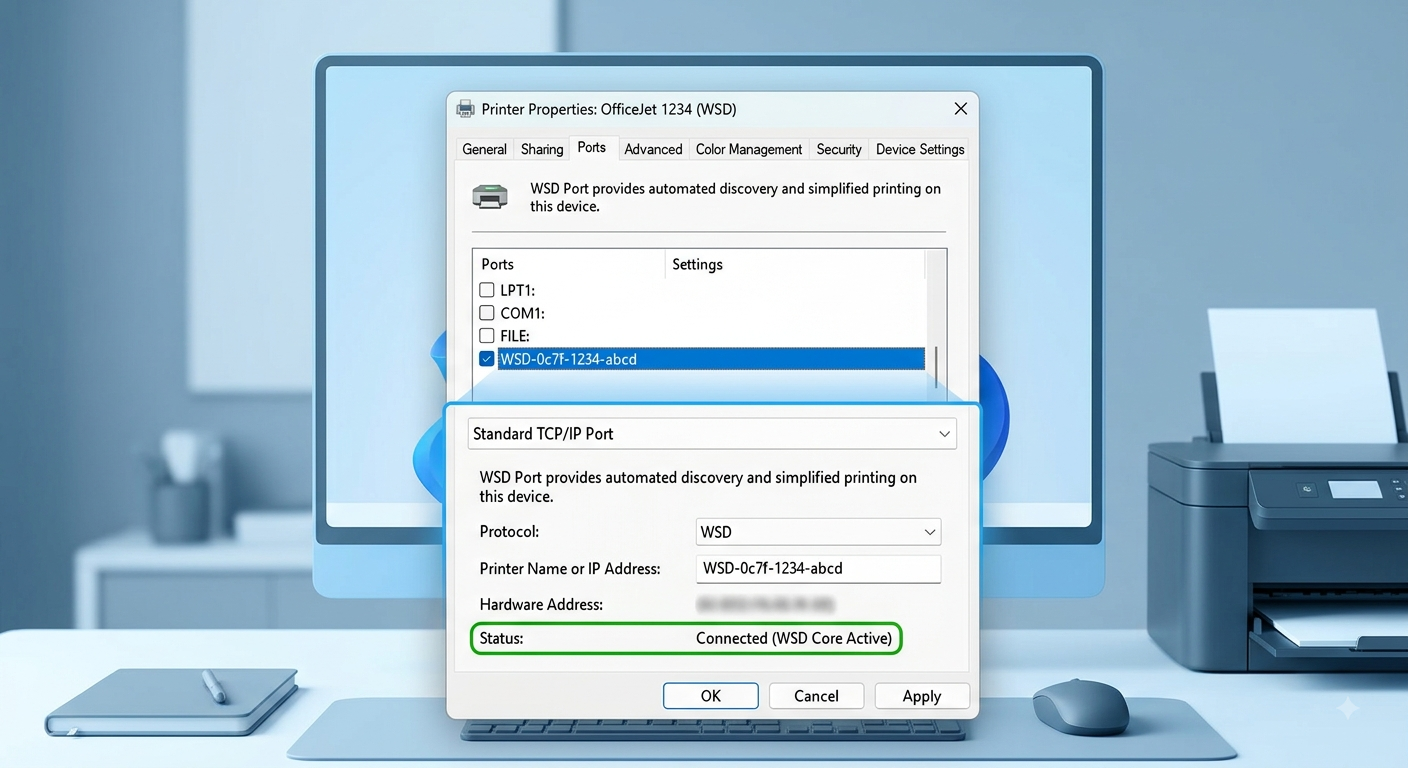
Why does it fail?
Think of WSD like an unreliable friend who changes their phone number without telling you. Windows uses WSD to look for your printer on the network. But if your router briefly resets or assigns your printer a tiny background update, WSD loses track of where the printer lives.
Your computer thinks the printer went missing, while your printer is sitting right there, completely unaware that anyone is trying to reach it.
The Easy Fix:
- The quick reset: Unplug your Wi-Fi router and your printer for 30 seconds, then plug them back in. This forces them to perform a fresh “handshake.”
- The permanent fix: Ask a tech-savvy friend or IT support to change your printer’s connection from WSD to a standard IP address (TCP/IP). It takes about two minutes and locks in the printer’s location permanently so your computer never loses sight of it again.
2. The “Default Printer” Switcheroo
Another classic reason documents vanish into the void: your computer sent the file to the wrong destination.
What happened?
Windows has a feature designed to be helpful called “Let Windows manage my default printer.” Whenever you switch Wi-Fi networks or plug in a new device, Windows tries to guess which printer you want to use.
Quite often, it guesses wrong. It might send your urgent 20-page report to:
- A “Print to PDF” tool (saving it as an invisible file on your computer instead of printing paper).
- An old printer at your office or a friend’s house.
- A duplicate version of your current printer listed as “Copy 1.”
The Easy Fix:
- Open your computer’s Settings and head to Devices > Printers & Scanners.
- Uncheck the box that says “Let Windows manage my default printer.”
- Click on your actual printer in the list and select Set as Default.
Now, Windows will stop playing guessing games every time you hit print.